RaceMaps Staff Guide
On-site SOP from prep -> start -> live operations -> wrap-up, with screenshots (light theme)
Prep
- Create events + categories
- Record routes + assign to correct categories
- Prepare QR + run a dry run
Live ops
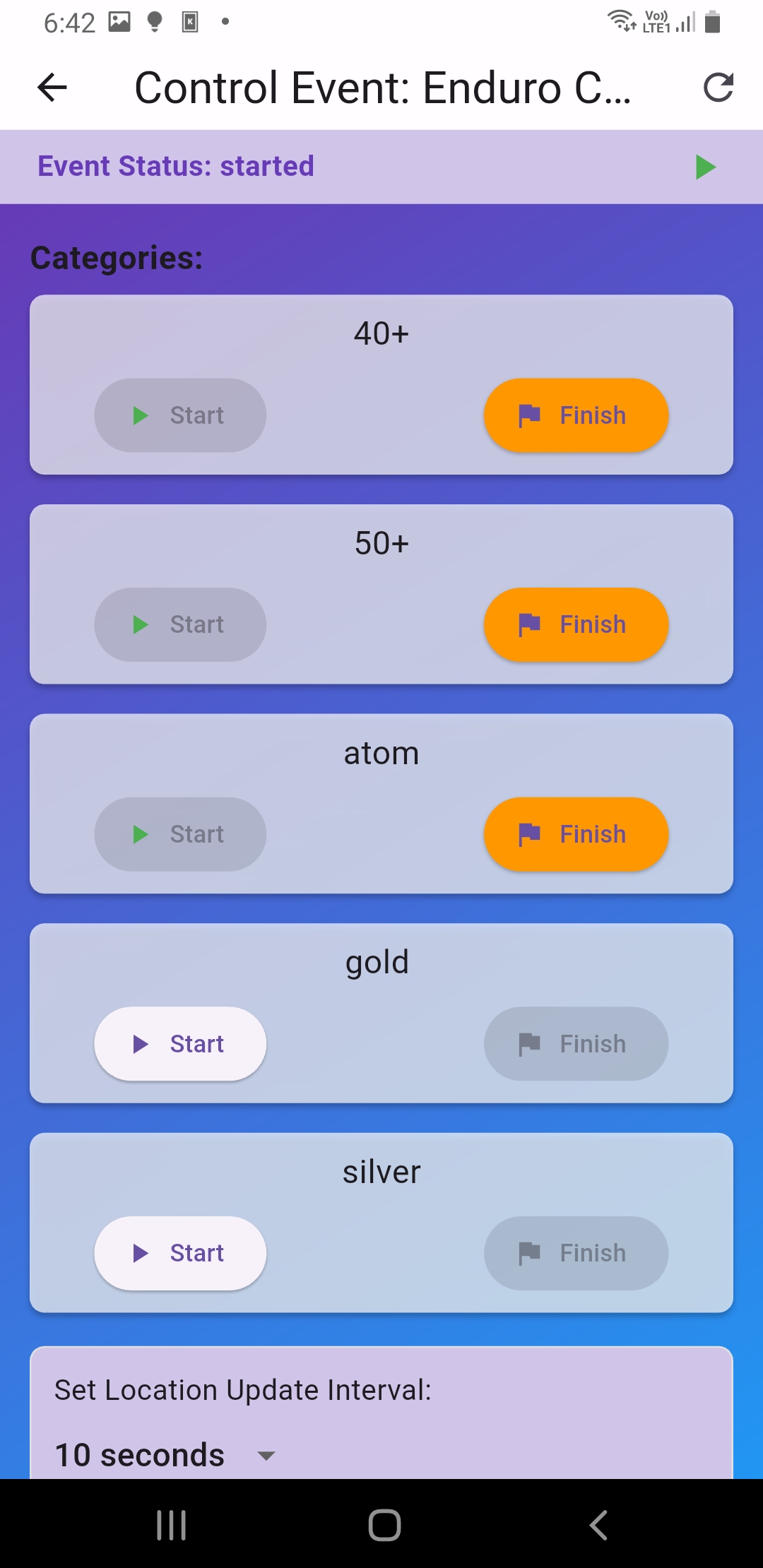
- Start/Finish categories from Control Event
- Fix "no racers / stuck positions / route not showing"
- Manage approvals/slots (if any)
Wrap up
- Finish all categories
- Ask racers to turn off tracking
- Collect QR / stop sharing per policy
Core idea: make sure racers can actually send location and viewers can enter-select-view easily, while
Admin controls event status throughout
KPI-1 Viewer enters event within <= 10 seconds (scan QR)
KPI-2 Dry run passes: Viewer sees location moving continuously for 2-3 minutes
1) Team goals (must achieve on event day)
- Racers send location continuously (tracking works + network ok + location permissions)
- Viewers enter events quickly (QR/search + correct category + select racers)
- Admin controls event status (start/finish categories + manage slots/approvals + routes assigned)
- Reduce repeated issues with checklists + comms scripts + troubleshooting playbook
Pass criteria (recommended): Dry run passes before event day, and during the first 10 minutes
of the real event no key racer "disappears from the map"
2) Team roles (recommend at least 3 people)
2.1 Tech Lead (system owner)
- Hold the main Admin access / know passwords/accounts
- Check overall system: internet, QR, routes, app version
- Final decision when major issues occur (wrong category/system down/plan change)
2.2 Admin Operator (watching Admin screen)
- Keep Control Event open throughout the event
- Press Start/Finish for correct categories at the correct time
- Manage Pending/Approved or slots (if any)
2.3 Registration / Racer Support
- Help racers choose event/category and check approval status
- Help set Location / Tracking / battery / network
- Ensure profile names are searchable (recommend "number-name")
2.4 Viewer Support
- Help scan QR / search event / select correct category
- Help select racers by slot
- Teach how to focus on a racer (tap name/pin)
If the team is small: Combine Viewer Support with Registration, but keep someone
watching Control Event at all times
3) Equipment to prepare (on site)
3.1 Core equipment
- Phone/tablet for Admin Operator (bigger screen is better) + power bank
- At least one phone for Racer Support
- One backup device (in case primary device dies/breaks/battery empty)
- Backup internet: 1-2 hotspots (or spare SIMs from different carriers)
3.2 Standard settings (all staff devices)
- Turn off battery saver
- Set Location to High accuracy
- Increase screen timeout (auto-lock as long as possible)
- Update all devices to the same app version before event day
Important: Racer devices must not be background-restricted, otherwise tracking drops/freezes
4) Pre-event SOP (T-7 to T-1)
4.1 Prepare event data
- Event name (official + easy to search)
- Category list: name / start-end time / approval rules / slot count
- Route: exists or not, show to viewers or not, key points
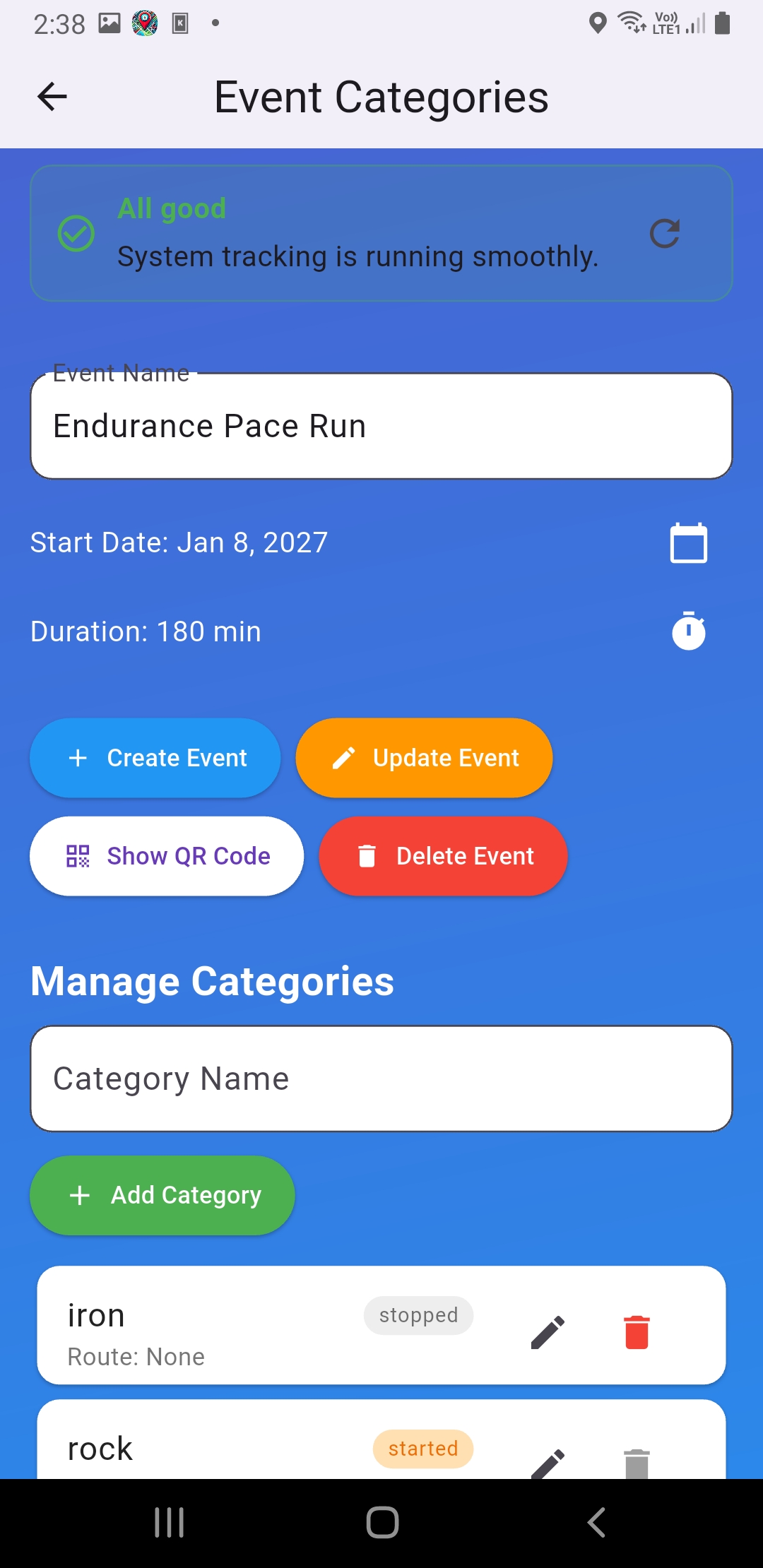
4.2 Create event (Admin)
- Enter Admin mode -> go to Existing Events
- Create a new event, or select an existing one and edit
- Open Event Detail and verify the info
Checkpoint: Name spelled correctly (TH/EN), date correct, no confusing duplicates
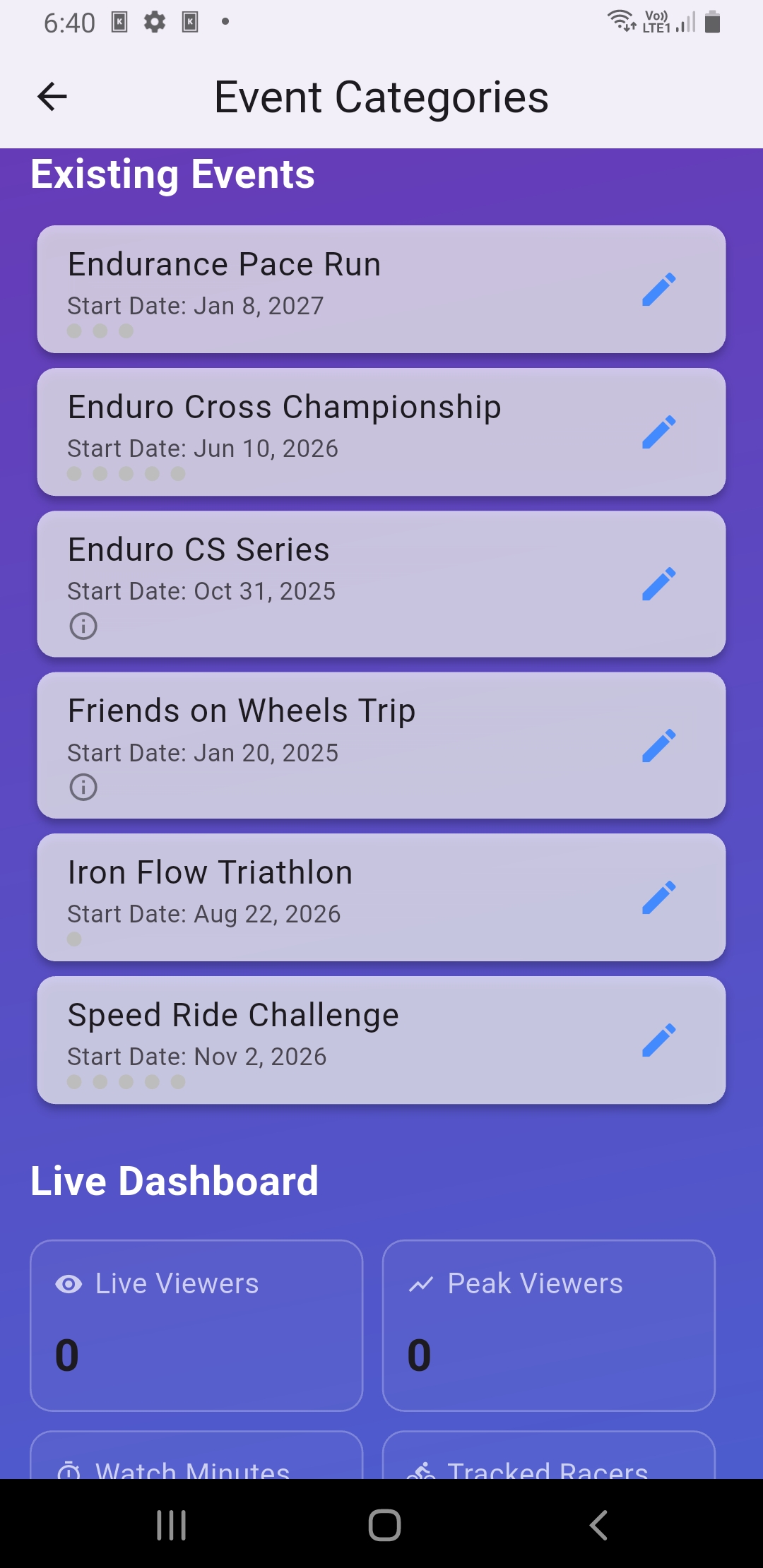
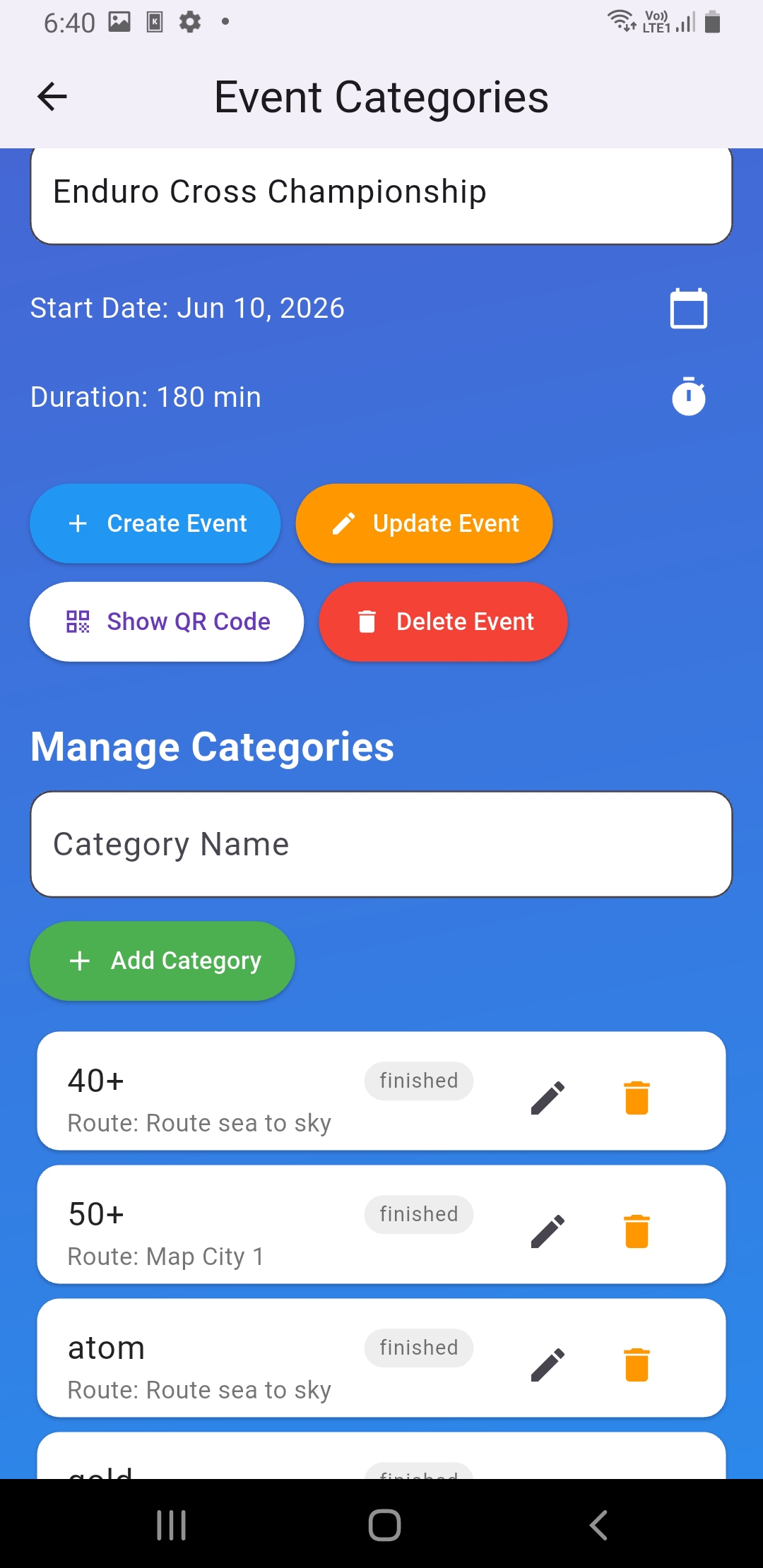
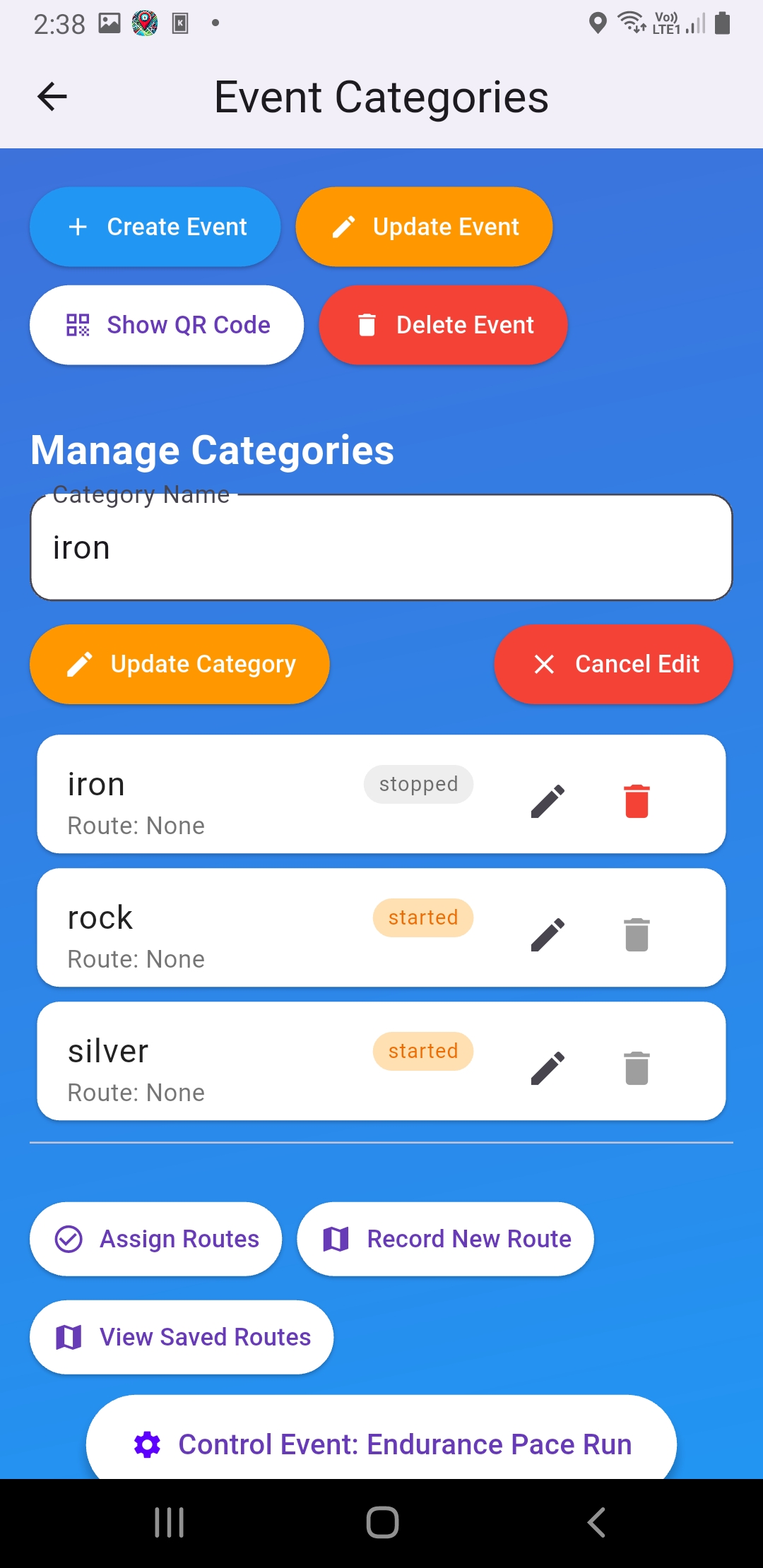
4.3 Create/manage categories
- From the event -> go to Manage Categories
- Add all categories
- Set start/end time (if used)
- Set rules (approval required / open join)
Checkpoint: Put time in the category name to avoid confusion (for example, "PRO (09:00)") when categories overlap
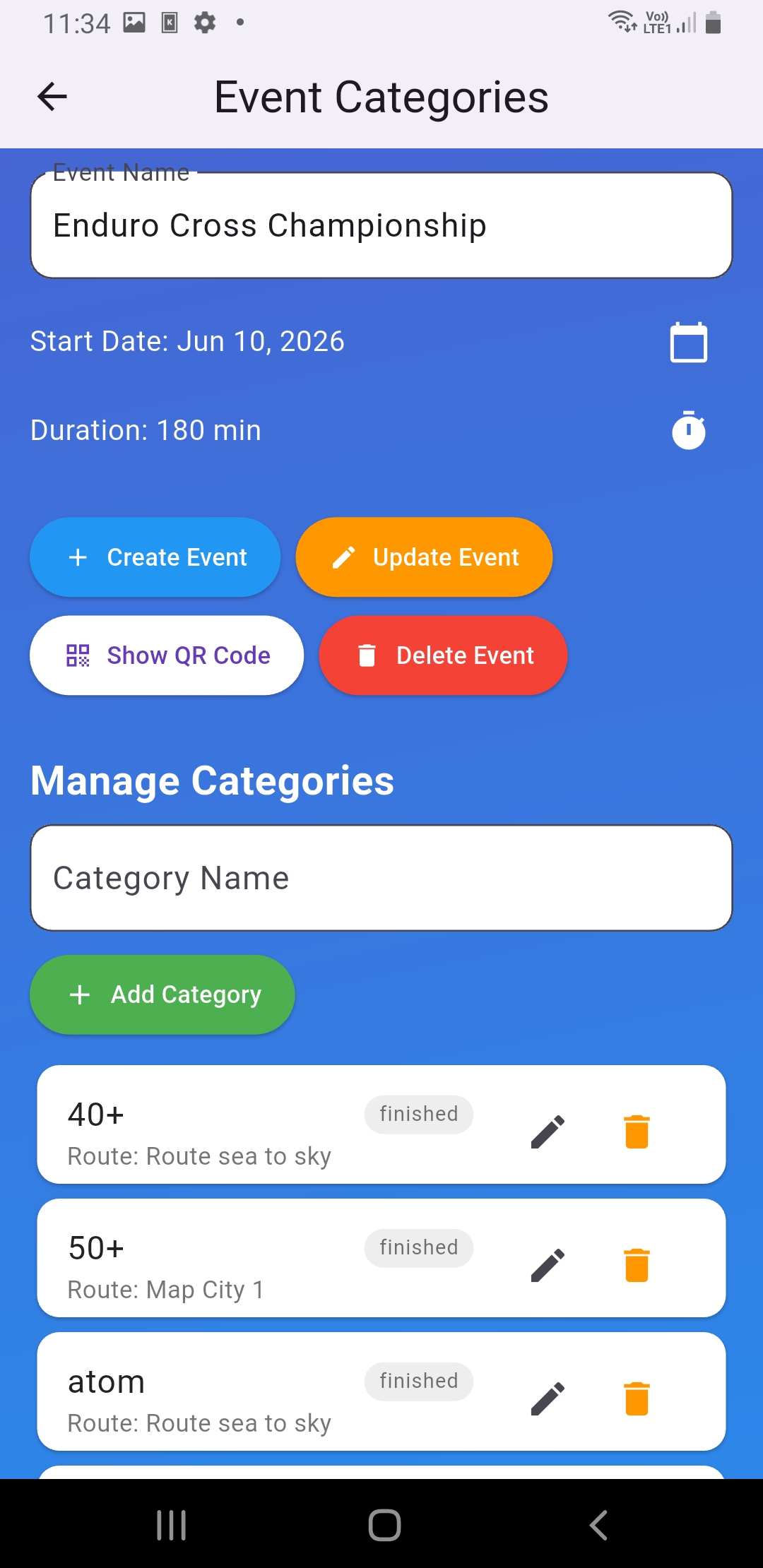
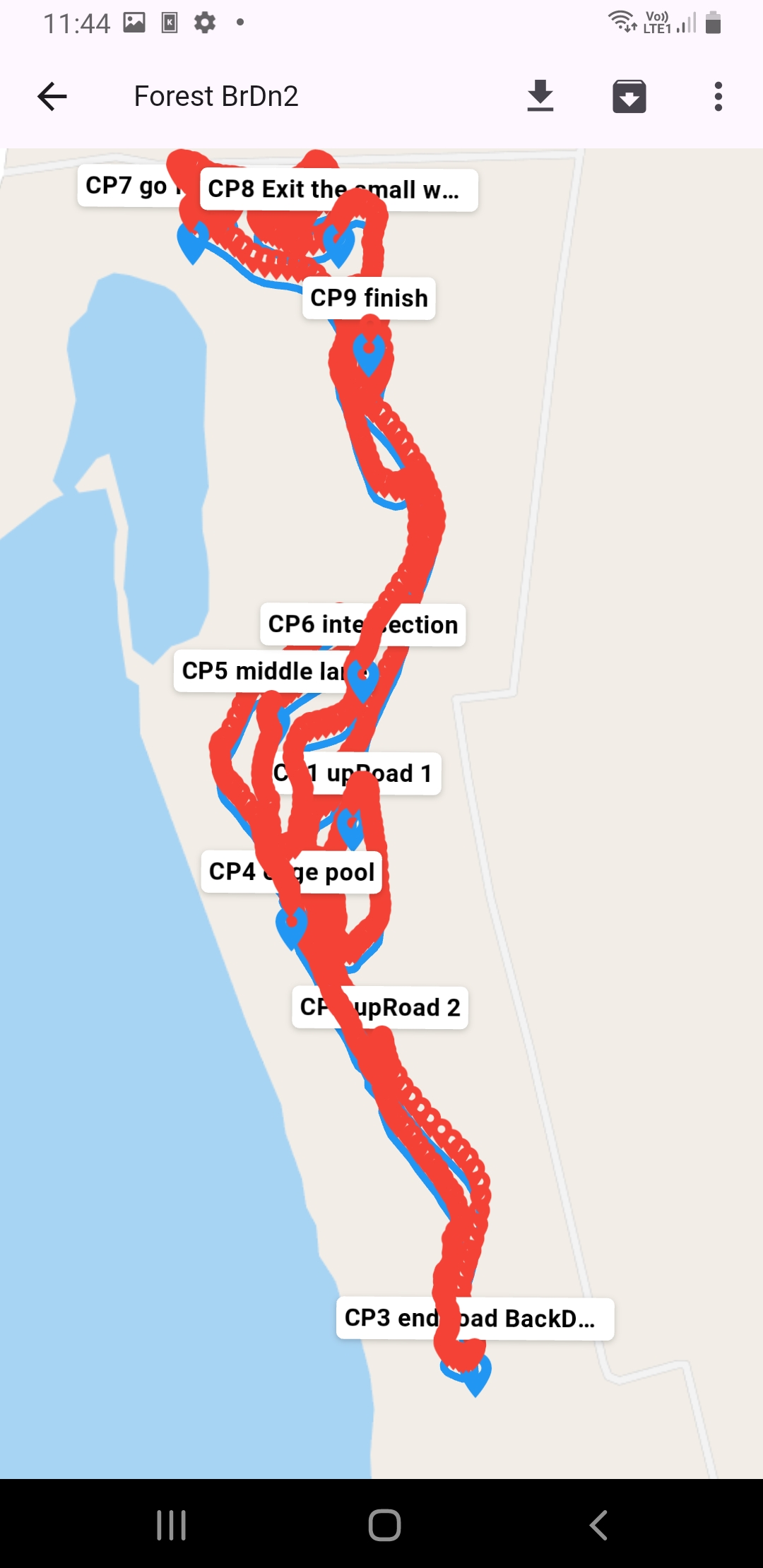
4.4 Prepare routes + assign routes
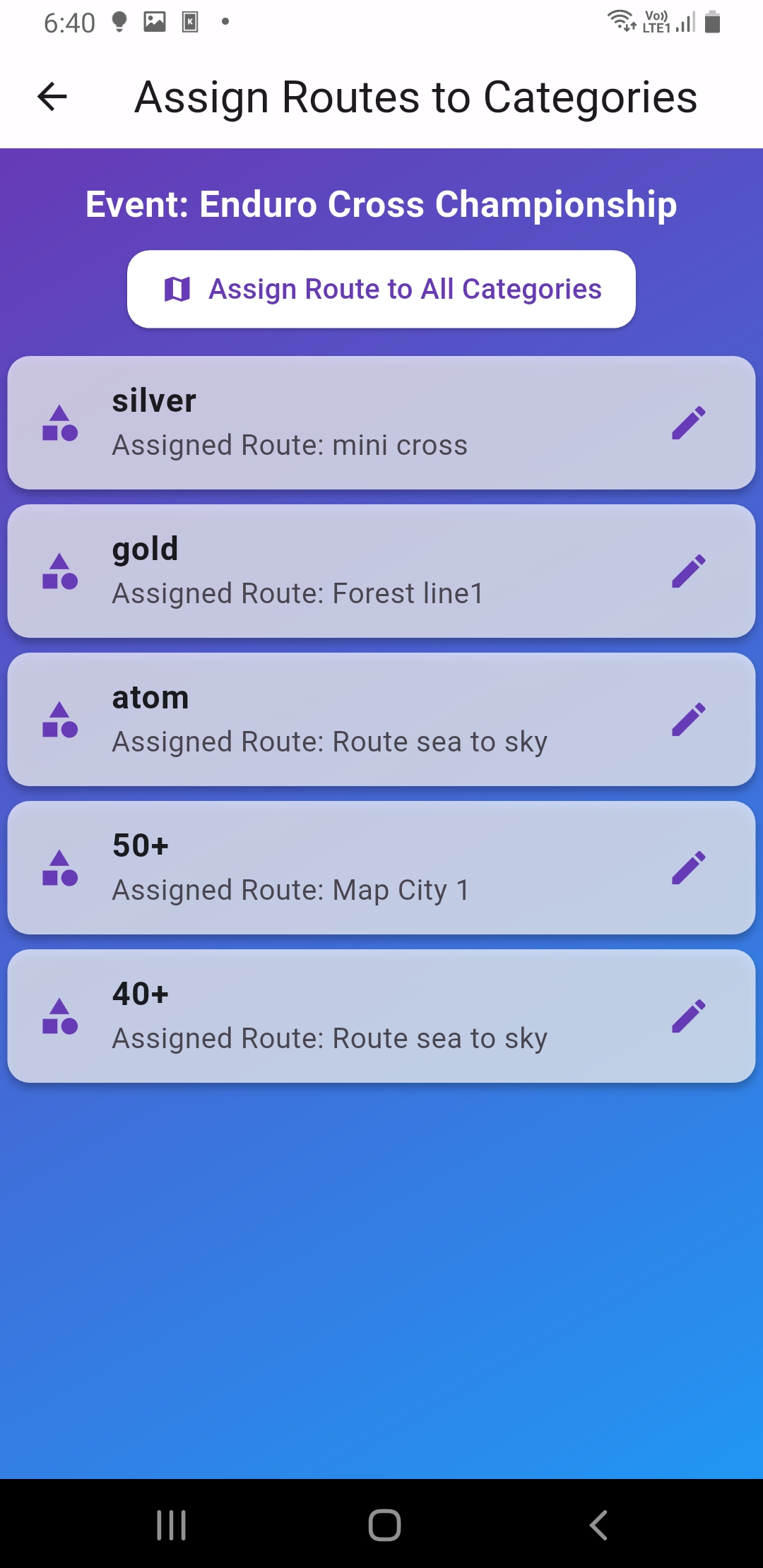
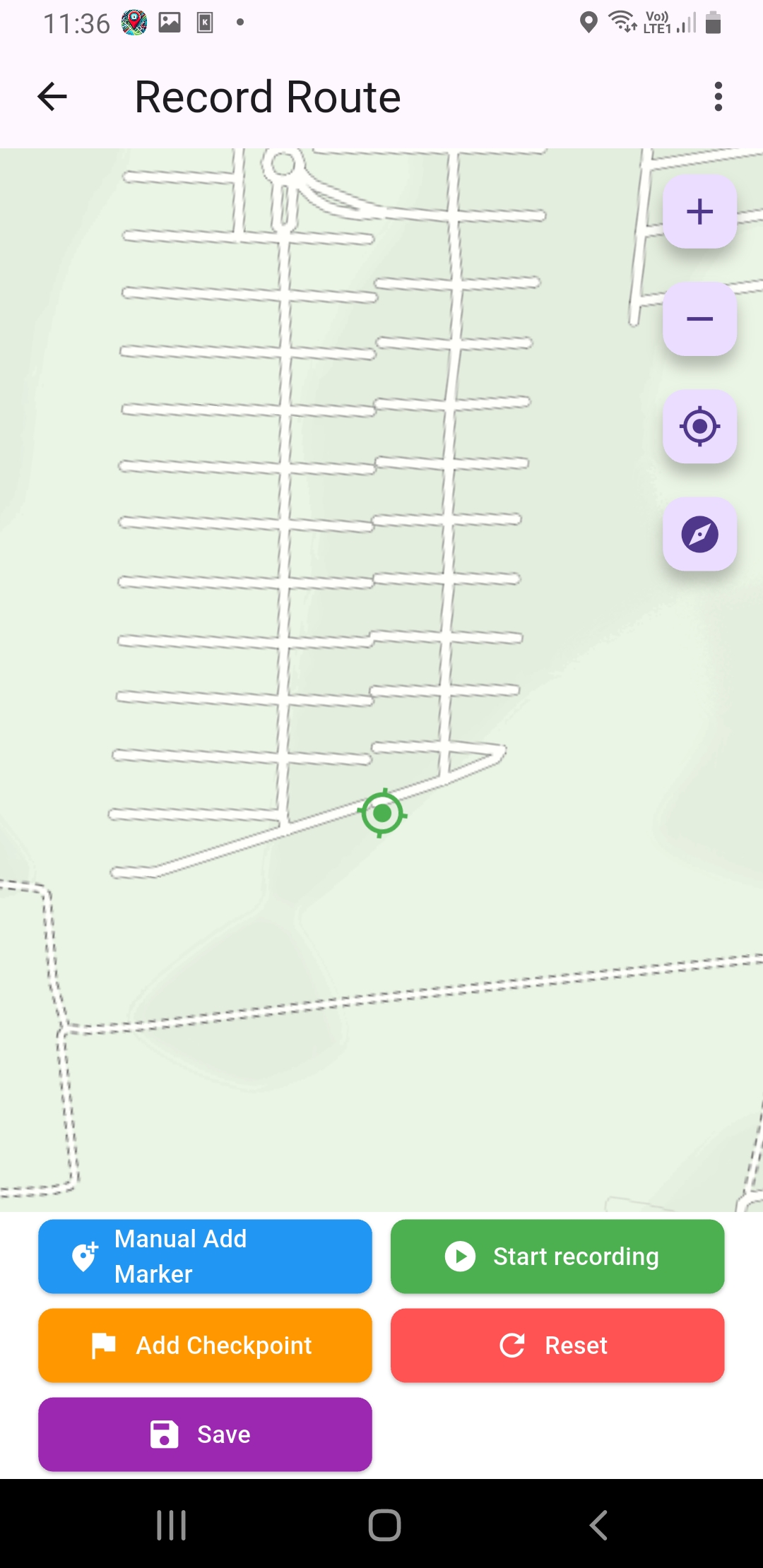
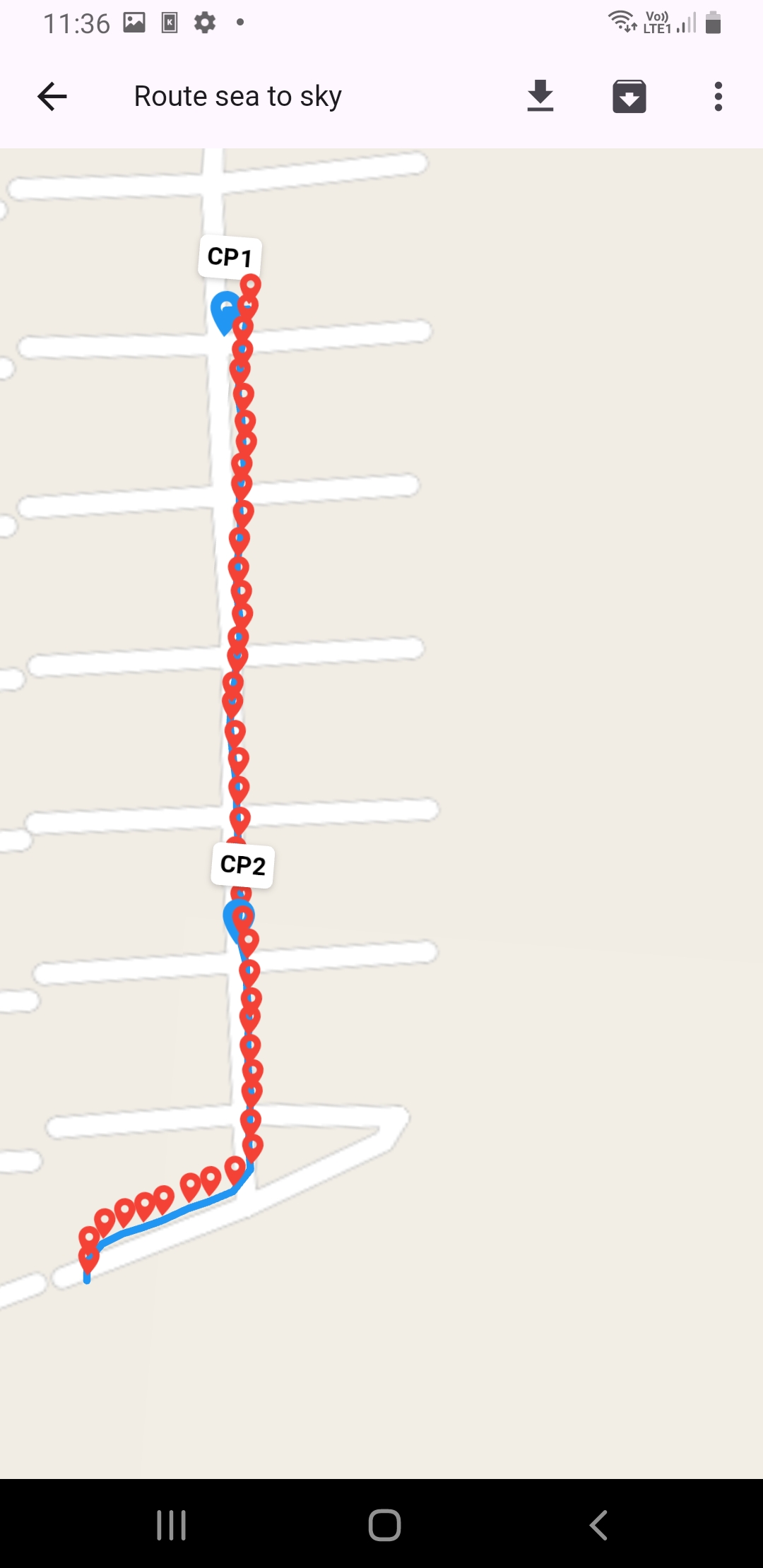
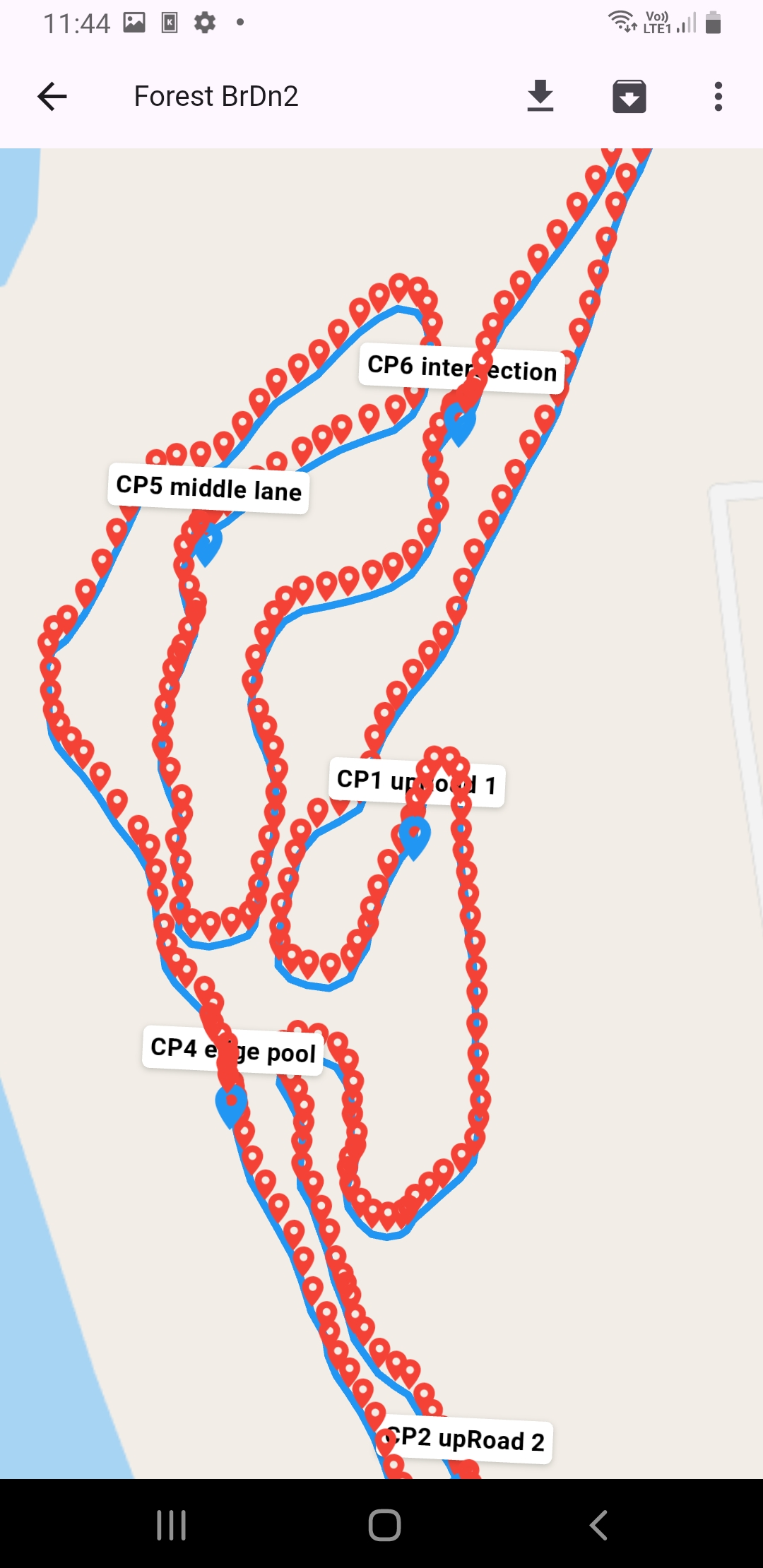
- Record/prepare routes completely
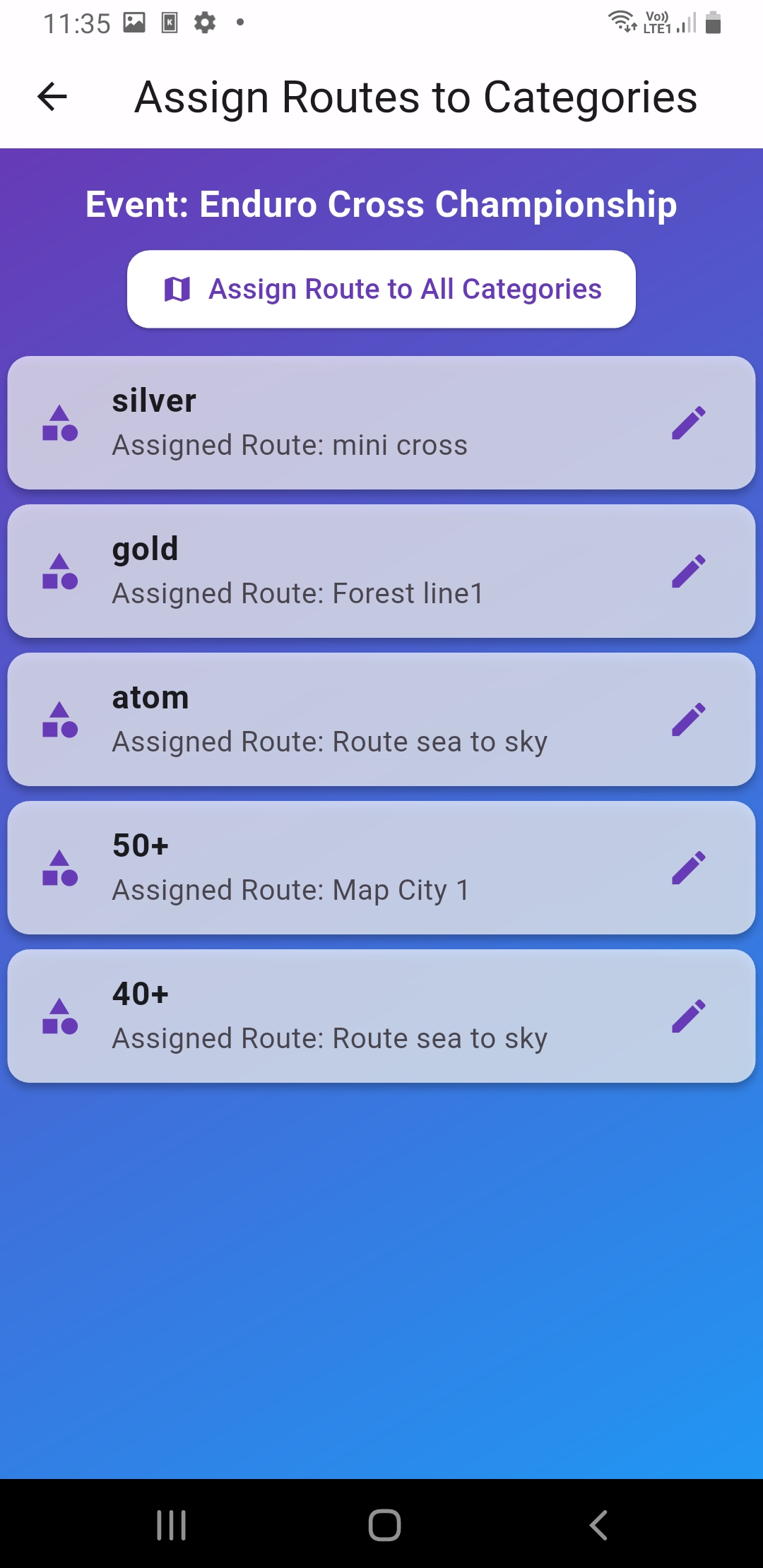
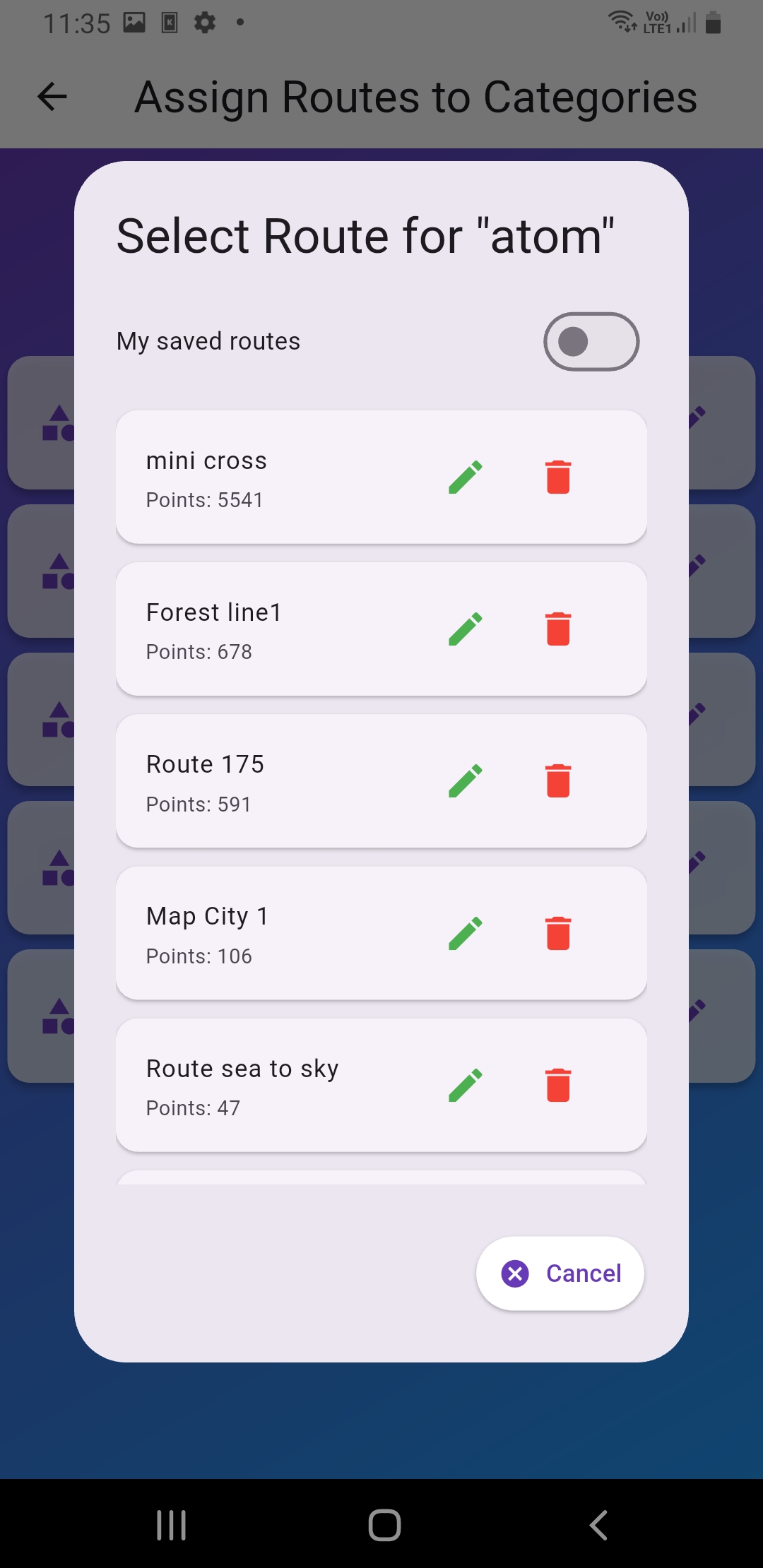
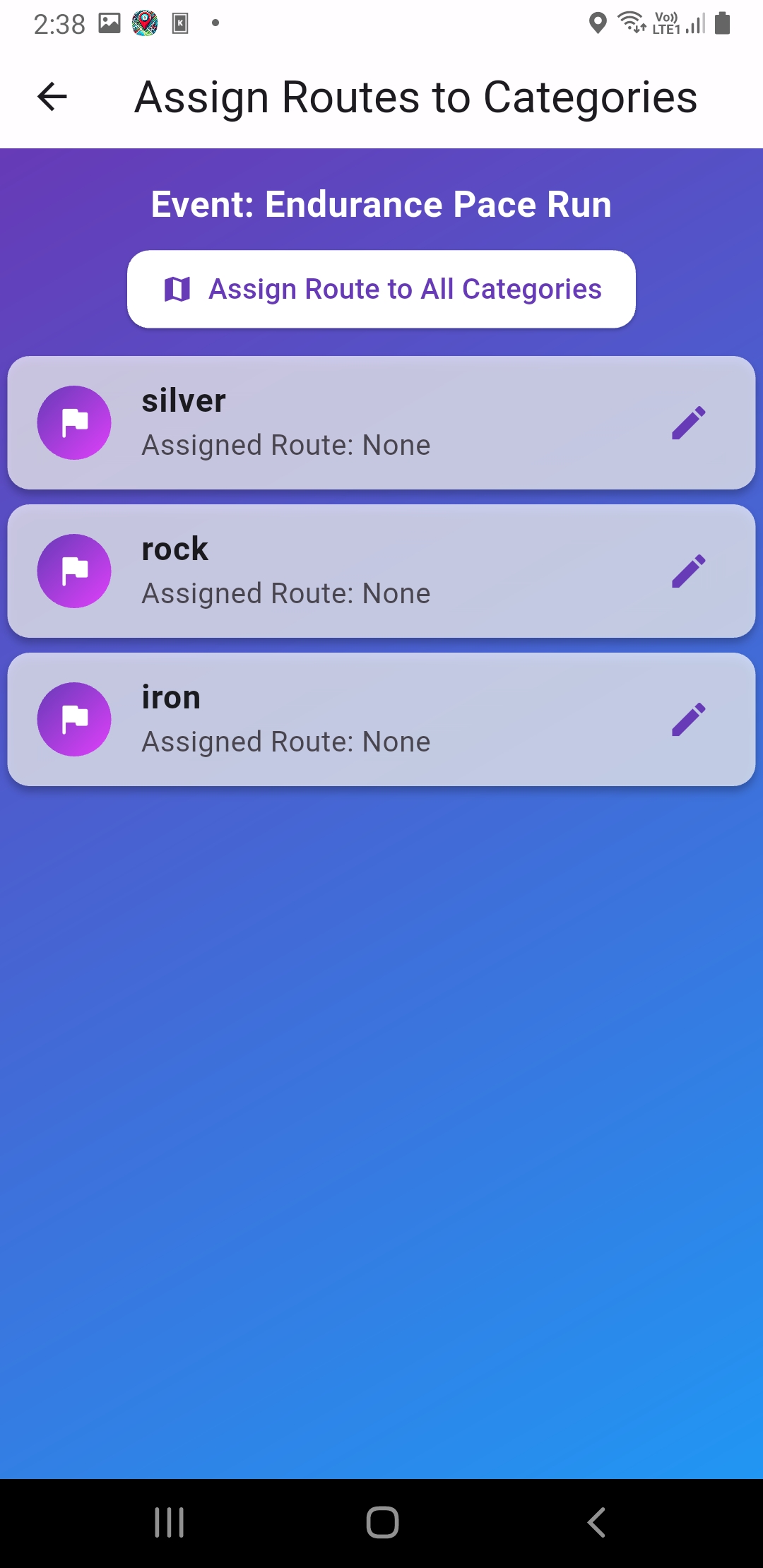
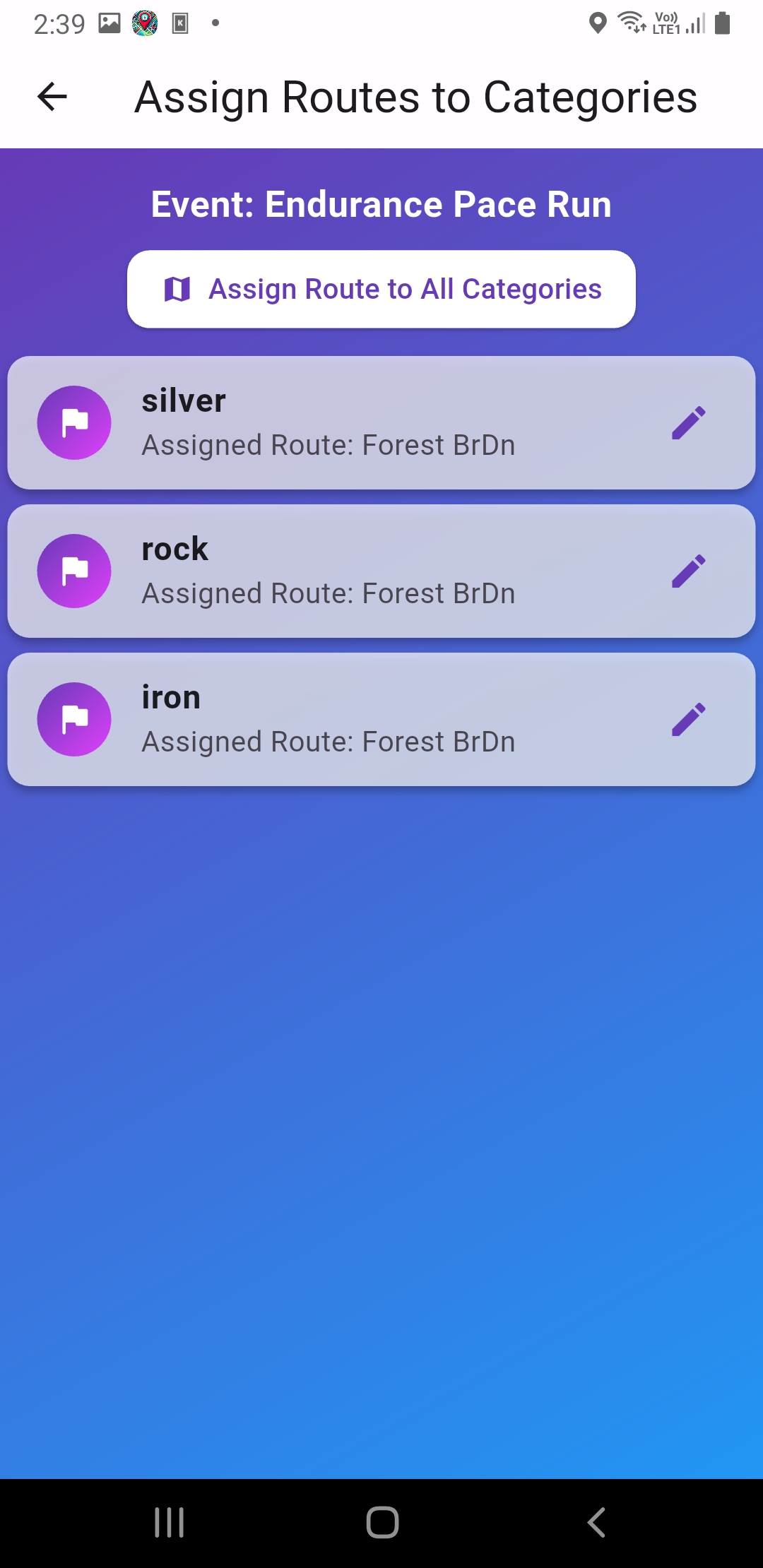
- Go to Assign Routes -> choose category -> assign the correct route
- Double-check that every category that needs a route is linked
Checkpoint (critical): If routes are not assigned, viewers may see racer pins but no route line
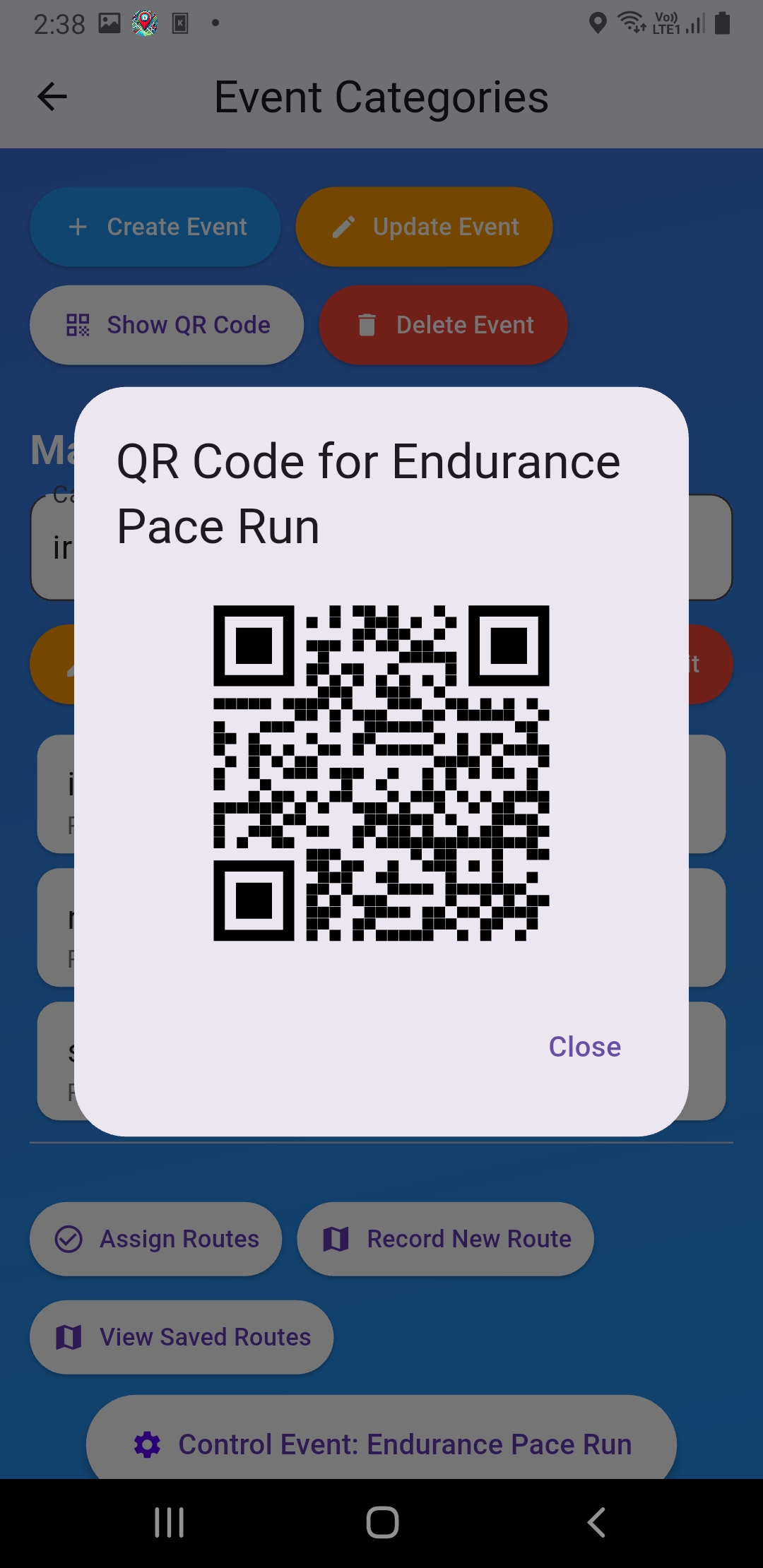
4.5 Prepare QR + dry run
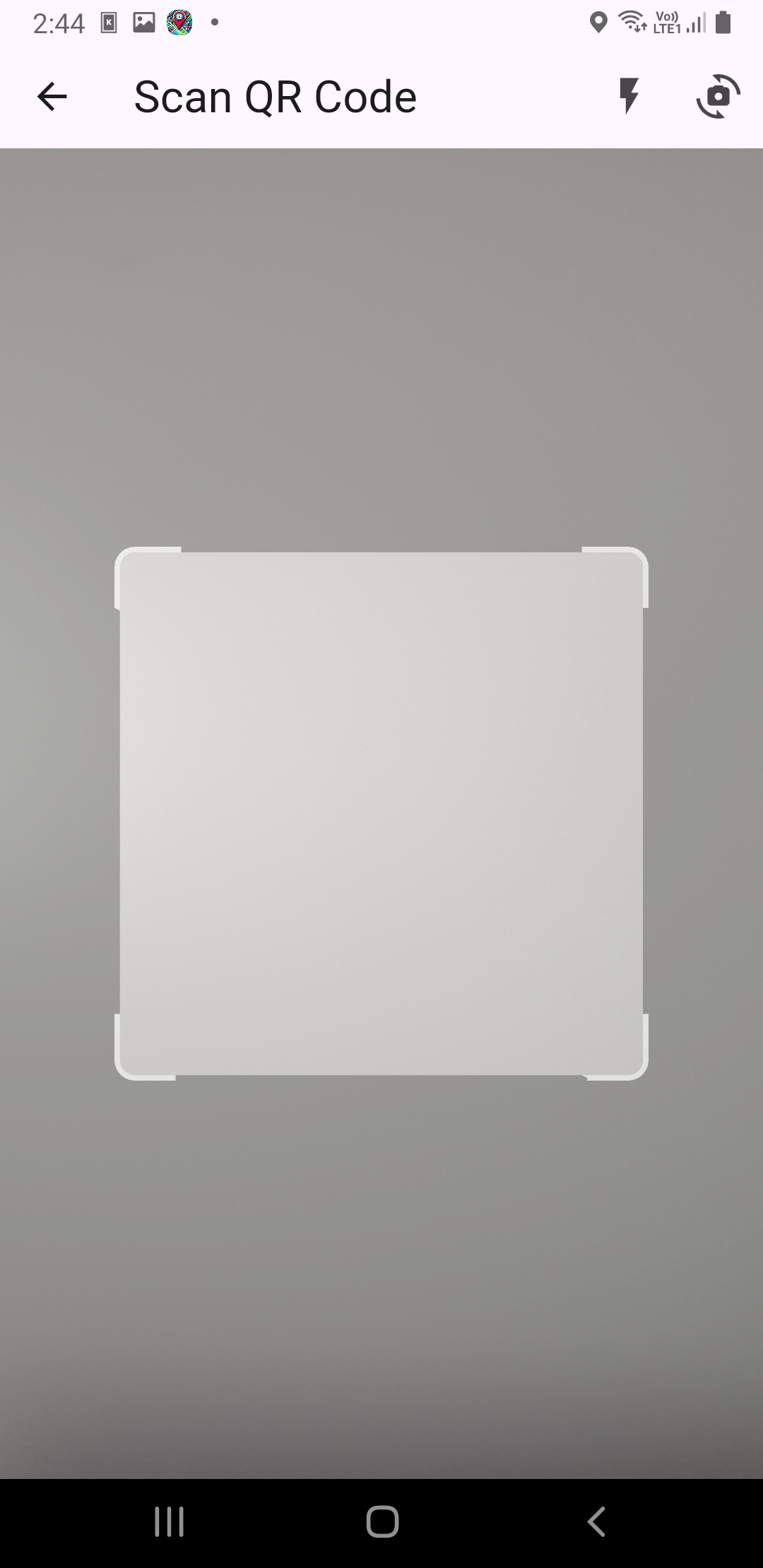
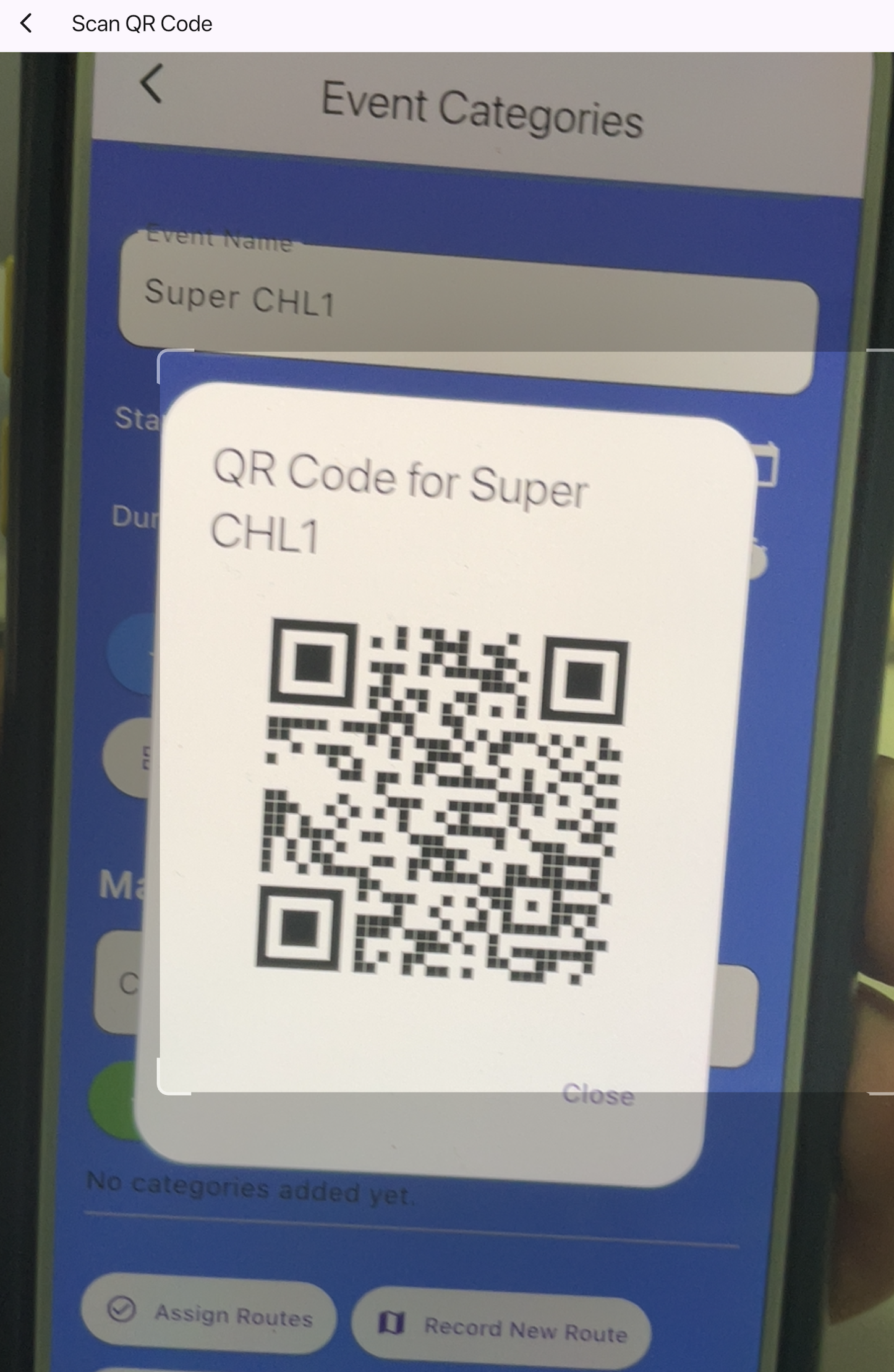
- Prepare event/category QR codes and test scanning with two phones
- Prepare on-site QR signs + keep backup images on staff phones
- Run a dry run: (A) Admin opens Control Event, (B) Racer enables Tracking, (C) Viewer sees positions moving
Pass/Fail: Pass = Viewer sees continuous movement for 2-3 minutes / Fail = position stuck/not showing -> fix before event day
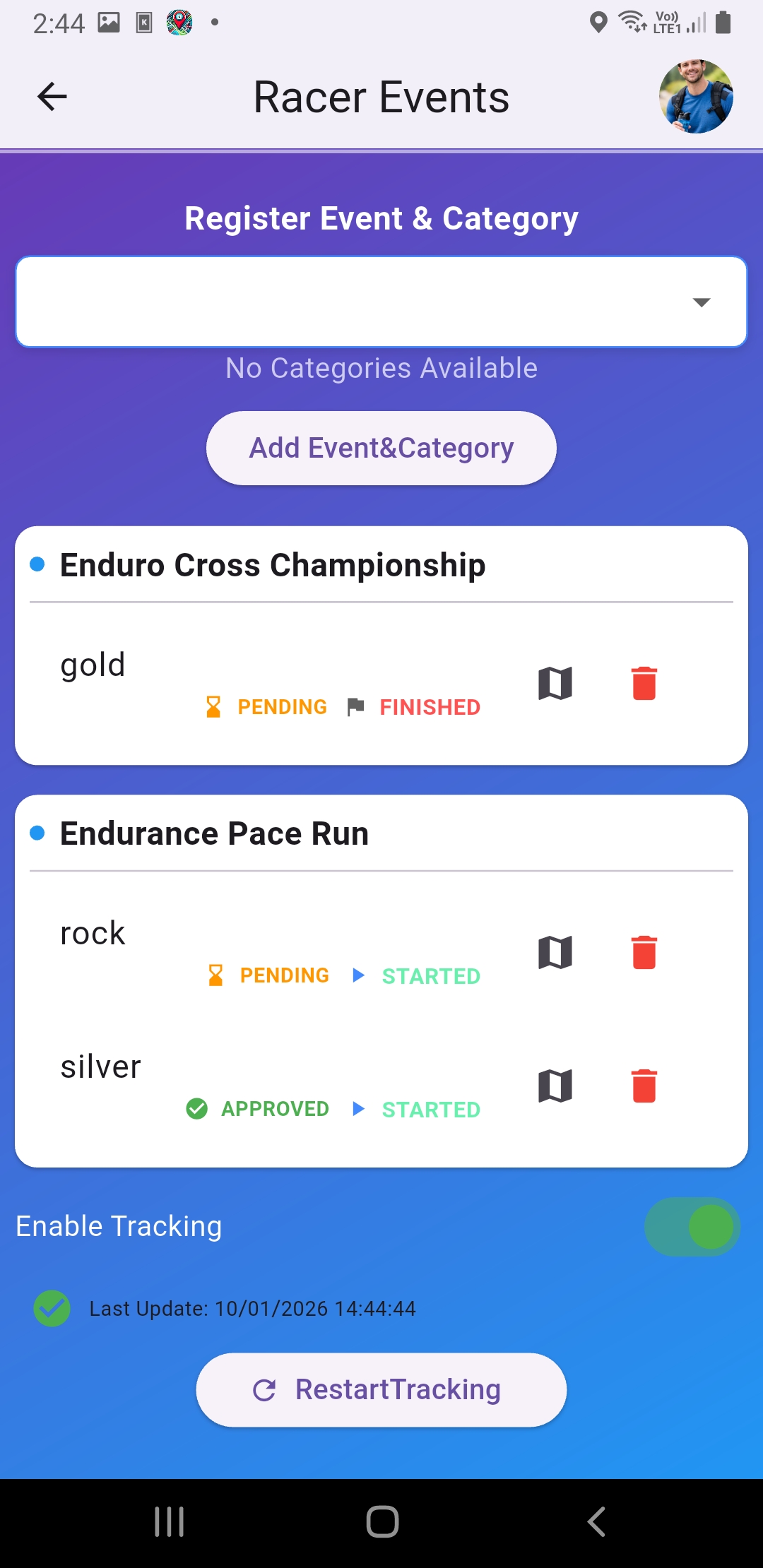
5) Event day SOP (before start)
5.1 Set up the "RaceMaps desk" (staff)
- Service point 1: Registration / Racer Support
- Service point 2: Viewer Support
- Service point 3: Admin Operator (watch Control Event)
5.2 Racer check-in steps (Racer Support)
- Have the racer open the app -> enter Racer mode
- Select event/scan QR -> choose the race category
- Check status (Pending/Approved) if approvals are used
- Location settings: GPS on, allow Location, turn off battery saver
- Have racer open the map and be "ready to tap Tracking" before the start
Quick checklist: "GPS on?" "Location allowed?" "Battery saver off?" "Network OK?"
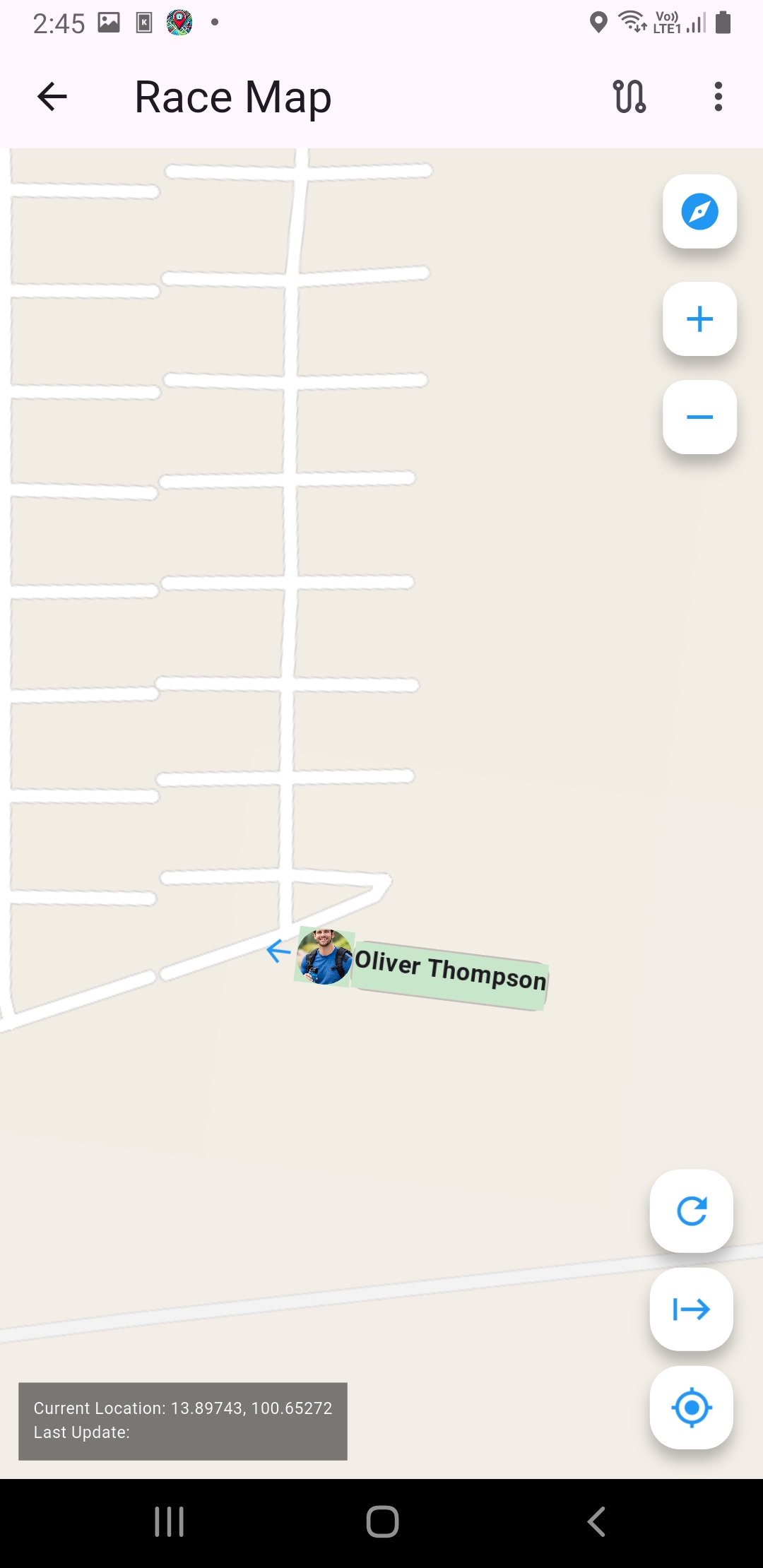
5.3 Viewer check-in steps (Viewer Support)
- Enter Viewer mode -> scan QR or Search Events
- Select event -> choose the correct category by time
- Open the Racers list -> select racers to follow (by slot)
- Teach 2 actions: "tap name to focus" and "you can search names"
Remind viewers: they must select racers first to see them on the map
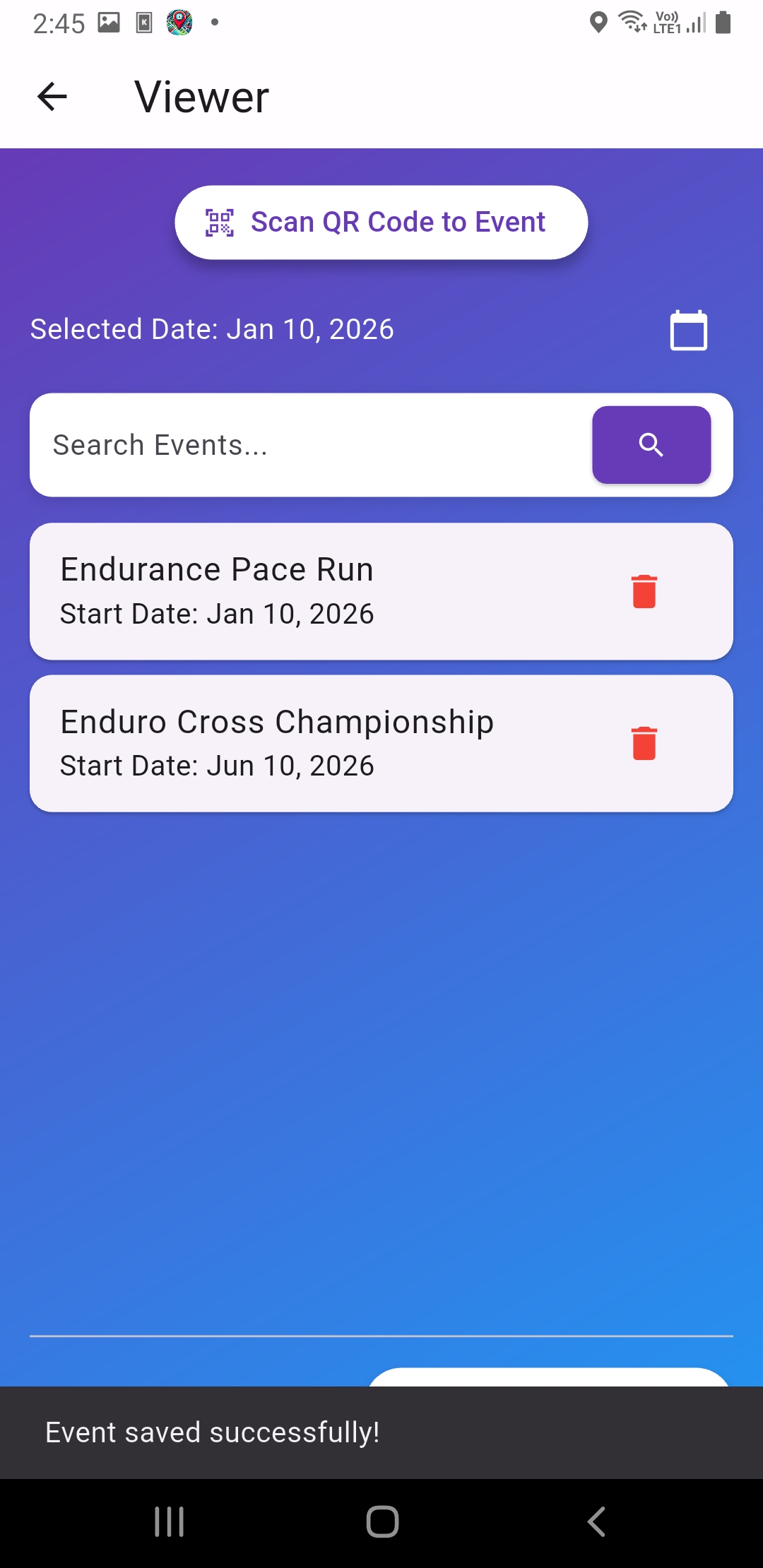
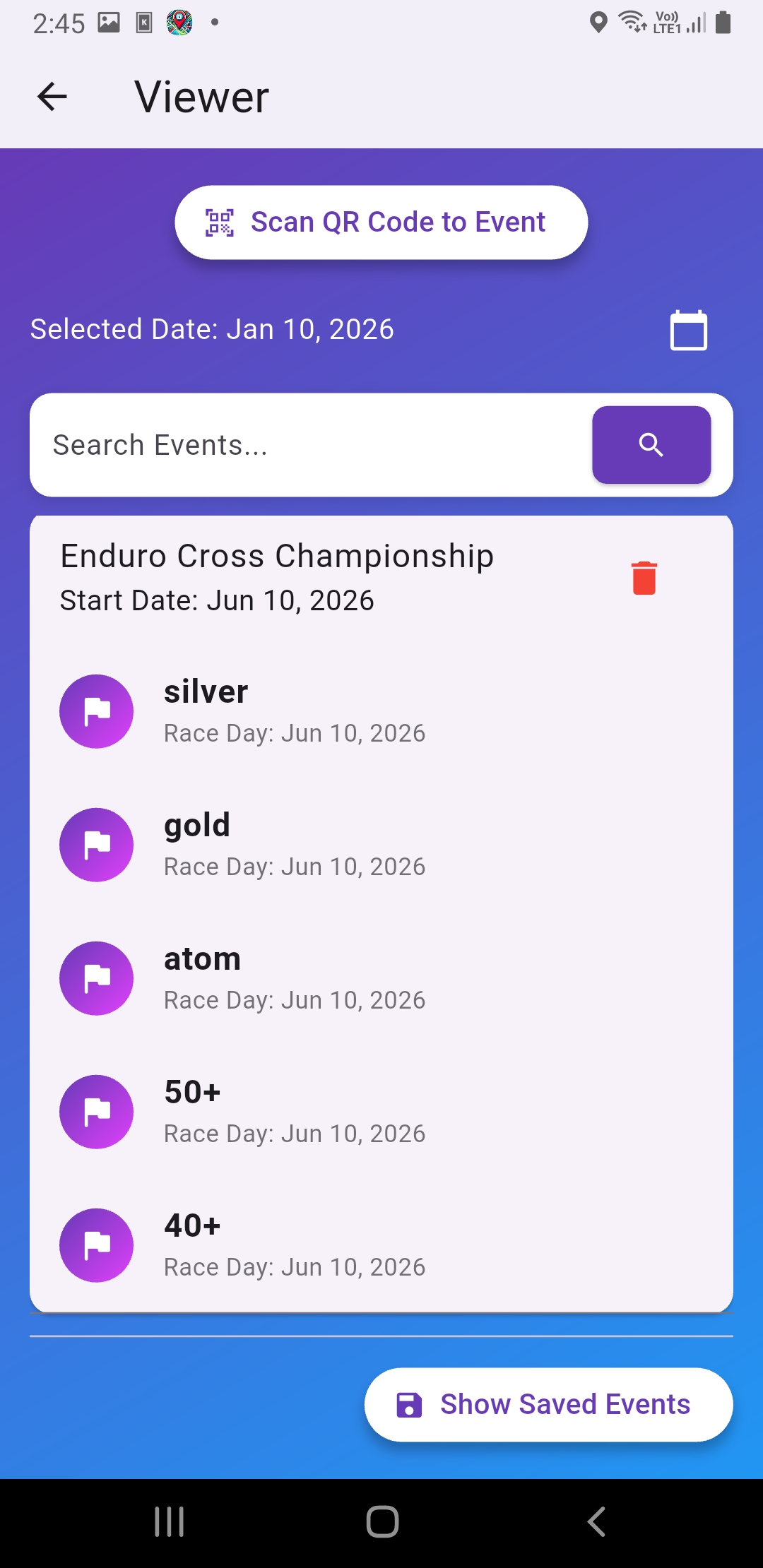

6) During event SOP (Live operation)
6.1 Admin Operator: control Control Event
- Keep the Control Event page open
- 3-5 minutes before start: verify the category and check racers sending location (if status available)
- At start time: press Start for the correct category
- During event: monitor Pending/Approved and coordinate with Tech Lead when route/category is wrong
- End of category: press Finish and announce racers to turn off Tracking
6.2 Racer Support: check Tracking (first 10 minutes are critical)
- Check "missing racers" from viewer reports or the app list
- Have the racer: open map -> toggle Tracking off/on once -> check network -> move to an open area for 30-60 seconds to get GPS
Principle: Restore location sending first, then dig into deeper causes
6.3 Viewer Support: reduce "can't see/can't select"
- Most common issue: entered event but "did not select racers"
- Always remind viewers that they must select racers first to see them on the map
7) Post-event SOP (wrap-up)
7.1 Close categories / close event
- Admin Operator presses Finish for all categories
- If there is a next category, switch clearly to prevent viewers from picking the wrong one
7.2 Turn off racer Tracking
- Announce for racers to turn off Tracking and exit the map screen
- Racer Support helps anyone still sending location
7.3 Collect QR / stop sharing
- If QR is only for event day, collect signs/links so they are not shared further
8) Troubleshooting playbook (on-site)
8.1 Viewer sees the map but not racers
- Check if racers are selected (and slots are not full)
- Check the correct category/time
- If still not visible: coordinate with Racer Support to check if Tracking is on
8.2 Racer location not moving / intermittent
- Turn off battery saver
- Enable high location accuracy
- Toggle Tracking off/on once
- Switch to staff hotspot temporarily
- Stand in an open area for 30-60 seconds to get GPS
8.3 Route not showing in Viewer
- Admin checks Assign Routes to ensure the category is linked to a route
- If linked to the wrong category: re-assign, then ask viewers to re-enter/refresh
8.4 Viewers cannot find a name
- Ask racers to update profile names clearly (recommend "number-name")
- Staff creates a standard list for announcements/booth display
8.5 Overlapping categories cause viewers to pick the wrong one
- Put time in the category name, for example "PRO (09:00)"
- Separate QR per category (if possible) and label clearly
Quick fix principle: Always start with "Category + Select Racers", then check Tracking/network/Route
9) Team communication standards
9.1 Short scripts for on-site announcements
- "All racers, please turn on GPS and enable Tracking in the RaceMaps app before the start."
- "Viewers: scan the QR -> select category -> choose racers to follow, then watch the map."
9.2 Internal coordination channels
- Create one internal team channel separate from viewer channels (LINE/radio)
- Standard message to Tech Lead: "Category: ___ / Time: ___ / Issue: ___ / Device: (Racer/Viewer/Admin) / Location: ___"
10) Summary checklist (printable)
Before event (day before)
- [ ] Create event + name is correct
- [ ] Create all categories + include time in name (if needed)
- [ ] Routes ready + assigned to every category that needs them
- [ ] QR ready + tested on two devices
- [ ] Dry run: Admin + Racer + Viewer pass for 2-3 minutes
Before start (event day)
- [ ] Admin has Control Event open and ready
- [ ] Key racers have GPS/Tracking on
- [ ] Staff has hotspot/spare SIMs
- [ ] Viewer Support ready to help select racers
During event
- [ ] Start categories on time
- [ ] Check first 10 minutes: any racers missing?
- [ ] Resolve "viewer can't see racers" by "select racers/check category" first
After event
- [ ] Finish all categories
- [ ] Tell racers to turn off Tracking
- [ ] Collect QR/signs/links per policy
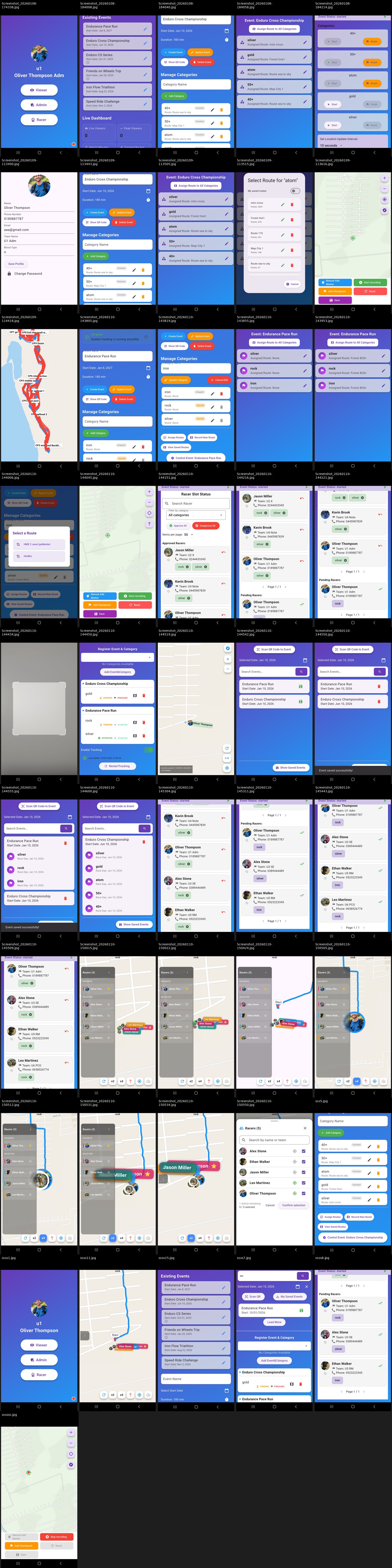
11) Gallery
Click an image to open full size (opens in a new tab)
12) Meaning: SOP (T-7 to T-1), KPI
Pre-event SOP (T-7 to T-1) is the Standard Operating Procedure for the period before the actual event day, from 7 days before to 1 day before the event.
What T-7 to T-1 means
- T = event day
- T-7 = 7 days before event day
- T-1 = 1 day before event day
Note: This time reference format is commonly used in events, sports competitions, production,
and even military/aviation to keep time references clear and avoid date confusion.
Why SOP is needed for T-7 to T-1
This is the most intensive preparation window. Missing steps here can make issues impossible to fix on event day.
This SOP is used to
- Define what must be done each day
- Clarify who is responsible for what
- Verify the system is 100% ready before event day
What KPI means
KPI stands for Key Performance Indicator. It defines and measures whether goals are met with clear numbers/criteria so the team can track readiness and fix issues before event day.
Why KPI is needed for T-7 to T-1
- Know whether you are truly ready or still at risk, in measurable terms
- Help prioritize what to fix first
- Make team communication easier by using shared numbers
Example KPIs for events/tracking systems
- System readiness: pass critical checklist items >= 95%
- Location update stability: average update <= 3-5 seconds
- Signal quality/continuity: location dropout rate <= X%
- User readiness: racers enabled tracking and tested successfully >= X people/teams
- System issues: number of critical cases still open = 0 before T-1
Summary: SOP tells "what to do and how," while KPI tells "whether goals are met."